For Team Members
You've been invited to a project on Feedboon. Here's everything you need to start reporting bugs.
Takes about 1 minute. No installation or setup required on your end.
1. Accept the invite
You'll receive an email from Feedboon with an invitation to join a project. Click the “Accept Invitation” button in the email.
- If you don't have a Feedboon account yet, you'll be asked to sign up (takes seconds)
- If you already have an account, you'll be added to the project automatically
From: Feedboon <[email protected]>
Subject: You're invited to My Website on Feedboon
Hi there,
John invited you to join the My Website project on Feedboon.
Feedboon helps your team report and track bugs visually with screenshots and annotations.
This invite expires in 7 days.
2. Open the site
After accepting, you have two ways to access the widget on the project's website:
- From the dashboard: Click the “Start Testing” button on the project page — it opens the site with the widget already active
- Directly: If the project owner has enabled public mode, the widget is visible to anyone on the site
Tip: Look for the bug icon in the bottom-right corner of the page. That's the Feedboon widget ready to go.
3. Report a bug
Reporting a bug takes three clicks:
Click the bug button
Look for the bug icon in the bottom-right corner of the page.

Click on any element
Hover over elements to highlight them in red, then click the one with the issue.

Describe the issue and submit
A form appears near the clicked element. Describe the bug, pick a priority, and hit Submit.
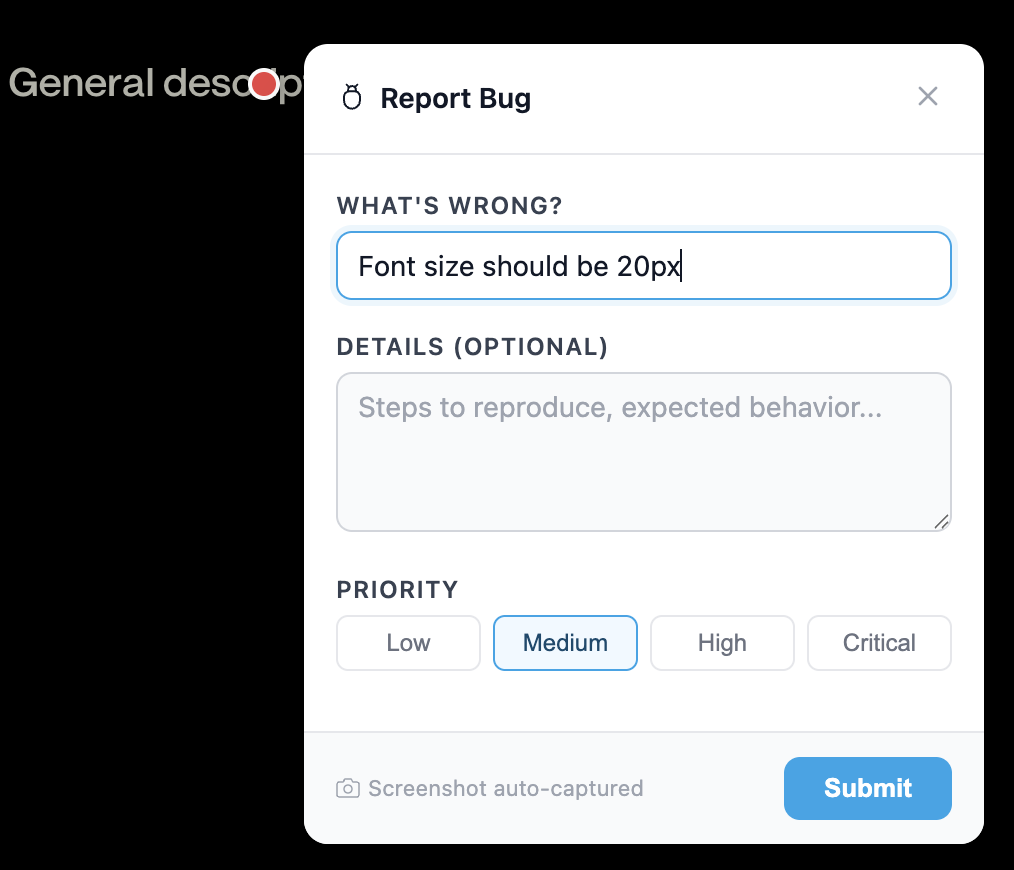
Automatic capture: A screenshot with a pin marker, the page URL, clicked element, browser, viewport size, and console errors are all collected for you — no extra steps needed.
4. View and track bugs
After submitting, a colored pin stays at the click point. Click any pin to see details, add comments, or change status.
Pin popup with details and comments

You can also view all bugs on the dashboard Kanban board, where you can drag bugs between columns, filter by priority, and manage the full workflow.
Pin status colors
Common questions
Do I need to install anything?
No. The widget is already embedded on the website by the project owner. You just need to accept the invite and visit the site.
Can I see bugs reported by others?
Yes. All team members can see all pins on the site and all bugs on the dashboard Kanban board.
What if I don’t see the widget on the site?
Try clicking the "Start Testing" button from the dashboard — it opens the site with the widget pre-authenticated. If the widget still doesn’t appear, ask the project owner to check the widget installation.
Can I change a bug’s status?
Yes. Team members can update status and priority from both the site (by clicking a pin) and the dashboard Kanban board.